
A lot of people chose the iPhone 5S over other smartphones because it simply worked. But it is still a piece of electronics, and every electronic device has its hiccups. Here are the most common problems iPhone 5S owners ran into and how to fix them.
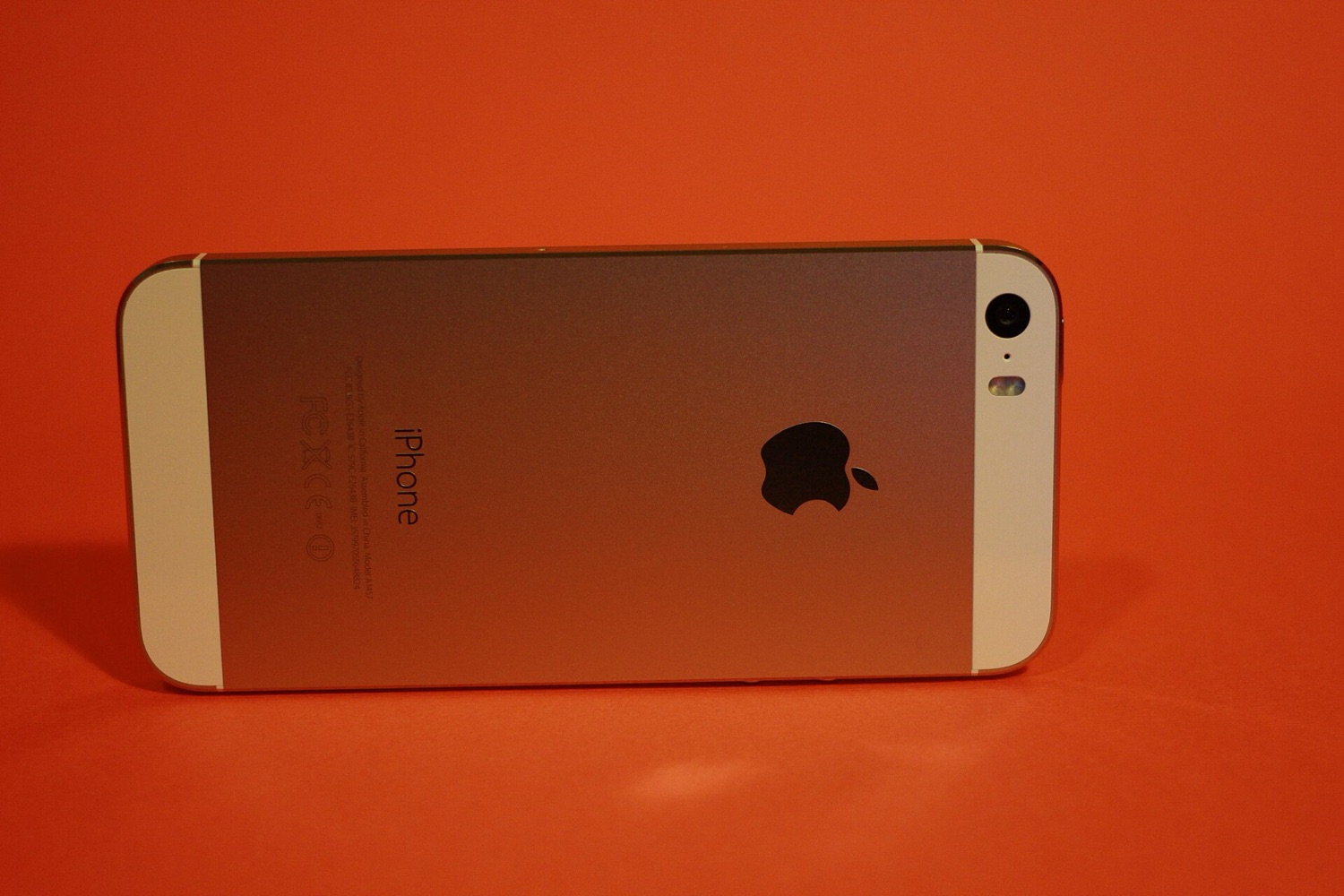
Update (October 2026): Apple released the iPhone 5S in 2013 and its last major update was iOS 12. It no longer receives security updates, so we do not recommend using one as your main phone, especially for banking or payment apps. We have kept this guide because many of the fixes, such as a full reset to rule out software faults, still apply to newer iPhones.
The "blue screen of death"
The term is usually associated with Windows, but early iPhone 5S owners saw something similar. Editing a document in Pages, Keynote or Numbers and pressing the Home button could make the screen turn blue and the phone restart. The cause was an interaction between the phone's new 64-bit processor and older apps. Apple fixed it in a software update, so the first step was always to install the latest update. Other things that helped:
- Close apps properly before pressing the Home button.
- Update all installed apps to versions built for the current iOS.
- Turn off iCloud syncing for the iWork apps in Settings.
- If nothing works, ask Apple support for help.
Faulty sensors
The iPhone 5S has a compass, gyroscope and accelerometer. Some units shipped with sensors that were slightly out of calibration, which affected games and navigation. Because this is a hardware problem, the best course of action is to take the phone to Apple or an authorised repairer for a fix or replacement.
Noisy buttons
Some owners complained that the Home and power buttons clicked loudly or rattled, and found the same thing on replacement phones. Since it was a design trait rather than a fault, a snug case was the simplest way to reduce the noise.
Overheating and fast battery drain
Not every owner had this problem, but those who did reported a full battery emptying very quickly and the phone getting hot. Apps running in the background are the usual cause, although it can also be a hardware fault. To rule out software:
- Back up all your data.
- Open Settings, then General, then Reset.
- Tap Erase All Content and Settings and confirm.
- Enter your Apple ID password if asked.
- Set the phone up as new and see whether the problem returns before restoring your backup.
If the battery still drains fast on a freshly reset phone, the battery itself is worn and needs replacing.
Purple glare in photos
The iPhone 5S camera was one of the best of its time, but users noticed a purple flare when a bright light sat at the edge of the frame. Apple's advice was simple: move the camera slightly so the light enters the lens at a different angle, or shade the lens with your hand.
Home button not working
A worn-out Home button is one of the most common iPhone problems of that era. If the phone is under warranty, take it to Apple. Otherwise, the on-screen AssistiveTouch button in the accessibility settings can stand in for it.
Microphone not working
A phone you cannot make calls with is not much use. Owners who found that callers could not hear them, or that voice recordings were silent, had a few things to try:
- Remove any protective film covering the microphone holes.
- Check that the app has permission to use the microphone (Settings, then Privacy, then Microphone).
- Take the phone out of its case in case it blocks the microphone.
- Contact Apple's technical support if none of that works.
Thinking about security as well as reliability? Our guide to securing your smartphone covers the basics, and our phone budget tips explain when an upgrade is worth the money.